Your Mac's clipboard only remembers the last thing you copied — copy something new and the old one is gone. A clipboard manager fixes that: it keeps everything you copy in a searchable history you can reuse and act on later. This guide covers what a clipboard manager is, whether you need one, and how it compares to what macOS already does.
- The macOS clipboard normally holds only the last thing you copied.
- A clipboard manager keeps a searchable history of everything you copy, so nothing is lost when you copy the next thing.
- macOS 26 added a small, temporary clipboard history in Spotlight — handy, but it clears itself after a few hours and can't search, pin, or act on clips.
- If you copy more than one thing in a row, you'll feel the difference within a day.
What is a clipboard, exactly?
The clipboard is the invisible holding space your Mac uses when you copy and paste. Press ⌘C and the selected text, image, or file goes onto the clipboard. Press ⌘V and it comes back out. You never see it — it just sits there in the background.
The catch: the clipboard holds exactly one item. The moment you copy something new, the previous item is gone for good. Copy an address, then copy a phone number, and the address has vanished. There's no "back" button.
So what is a clipboard manager?
A clipboard manager is a small app that runs in the background and keeps a record of everything you copy. Instead of one slot, you get a running list — your clipboard history. Open it with a keyboard shortcut and you can scroll back through the last dozen, hundred, or thousand things you copied, search for the one you need, and paste it straight into whatever app you're in.
Think of the built-in clipboard as a sticky note you keep overwriting, and a clipboard manager as a notebook that keeps every note in order.
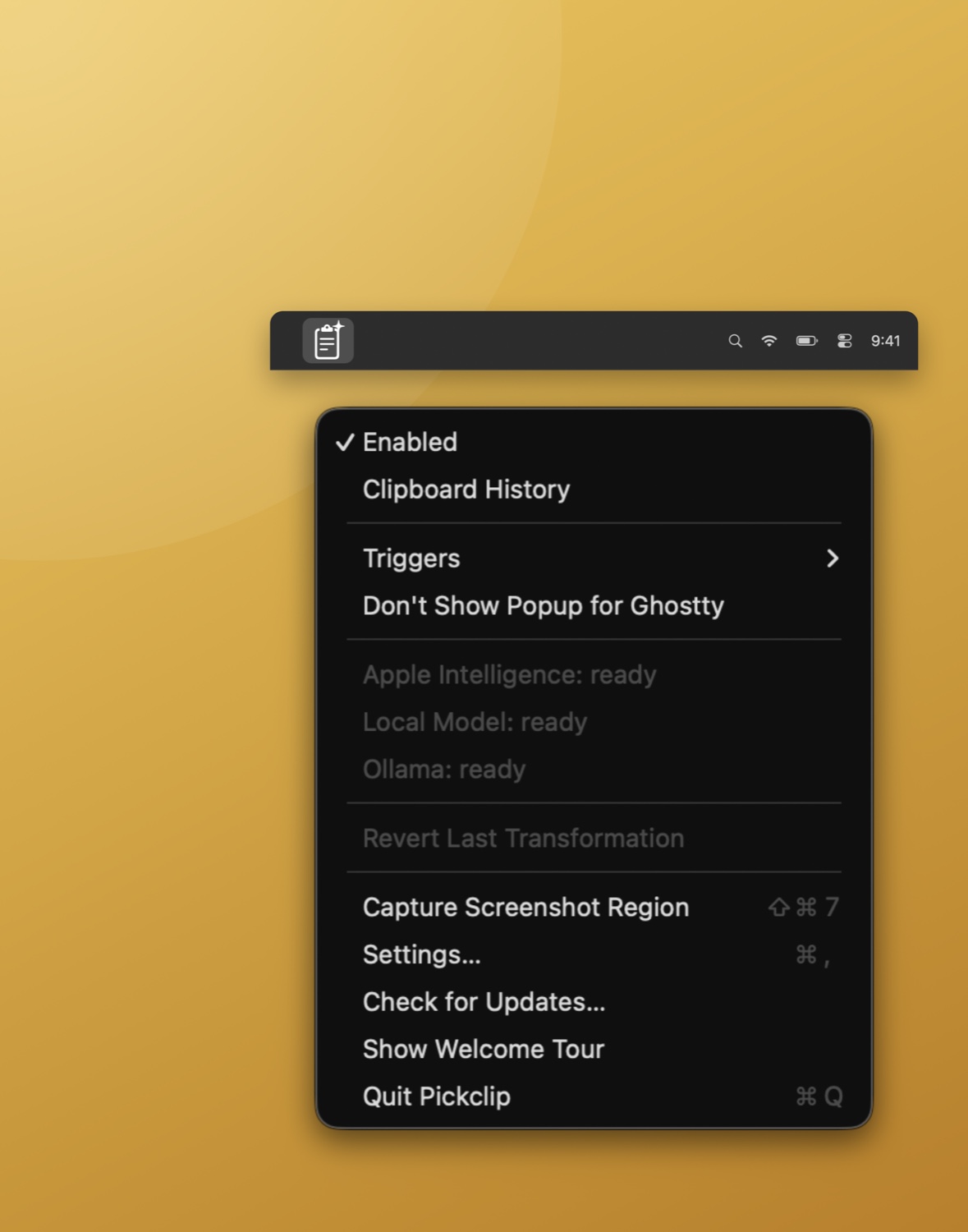
How does a clipboard manager work?
It's simpler than it sounds. A clipboard manager:
- Watches the clipboard. Every time something new lands there (you press ⌘C), it quietly saves a copy into its own list.
- Keeps a history. Text, rich text, links, and images all get added, newest at the top, each with a timestamp.
- Gives you a shortcut to browse it. A hotkey opens a window where you can search and scroll your past copies.
- Pastes the one you pick. Choose an item and it goes back onto the clipboard (or straight into the app you're using), ready to paste.
Good clipboard managers also let you pin items you reuse a lot, filter by type (just links, just images), and quietly expire old clips so the list never becomes a junk drawer.
Does Mac have a clipboard manager built in?
For most of macOS's history, no — the system clipboard held a single item and that was it. In macOS 26, Apple added a built-in clipboard history you can reach from Spotlight, which was a genuinely useful addition. But it's intentionally minimal:
- It keeps only a short, recent stretch of copies, and macOS clears it automatically after a few hours.
- There's no real search across a long history and no way to pin the snippets you reuse.
- It's a list you paste from — it can't do anything to a clip (translate it, fix it, clean a link, pull text out of an image).
So if you just want to grab something you copied two minutes ago, the built-in history is fine. If you want a clipboard you can rely on for the whole day — searchable, persistent, and able to act on what you copied — that's what a dedicated clipboard manager is for.
Built-in macOS clipboard history vs. a dedicated clipboard manager:
| macOS clipboard history | Clipboard manager | |
|---|---|---|
| How far back | A few hours, then cleared | As long as you want |
| Search | Limited | Full-text search |
| Pin / reuse | No | Yes |
| Images & rich text | Basic | Yes, with previews |
| Act on a clip | No | Yes (with the right app) |
Do you actually need one?
Here's the honest test. You probably want a clipboard manager if you've ever:
- Copied something, copied a second thing, then realized you needed the first one back.
- Pasted the same snippet — an email signature, a wallet address, a canned reply — over and over.
- Lost a chunk of text you copied but hadn't pasted yet, because you copied something else first.
- Wished you could grab a link, a code, and an address in one pass and paste them one after another.
If none of that sounds familiar, you probably don't need one. But if you move text around all day — developers, writers, support and sales teams, students — it quickly becomes a tool you'd miss the moment it's gone.
Beyond history: clipboard managers that act on what you copy
Most clipboard managers only store what you copy. A newer kind also acts on it — because what you copy often needs a small fix before you paste it.
You copy a paragraph in the wrong language. You copy a sentence with three typos. You copy a link buried in tracking junk. You copy a screenshot when what you really want is the text inside it. A clipboard that can act offers to fix those in place — translate, correct grammar, clean the link, pull the text out of the image — right at your cursor, the moment you copy.
That's the lane Pickclip sits in: a clipboard manager with a searchable history plus on-device AI actions on whatever you copy, all running on your own Mac with nothing sent to the cloud.
A clipboard you can come back to — and act on.
Pickclip keeps a private, searchable history of everything you copy, and offers instant actions — translate, fix, organize, clean a link, pull text from an image — powered by on-device Apple Intelligence. No account, no cloud, no subscription.
↓ Download for Mac Free 14-day trial · macOS 26+ · Apple SiliconFrequently asked questions
Does Mac have a clipboard manager?
macOS has a clipboard, but historically it held only the single most recent item. macOS 26 added a short, temporary clipboard history in Spotlight, but it clears after a few hours and can't search far back, pin items, or act on them. For a persistent, searchable history you install a dedicated clipboard manager.
How do I see what I copied earlier on my Mac?
Without extra software you generally can't — the system clipboard only holds the last item. A clipboard manager records each copy into a history you open with a shortcut (in Pickclip, ⌘⇧V), where you can search and re-paste anything.
How many things can a clipboard manager remember?
That's up to the app and your settings — anywhere from the last few dozen items to effectively your entire copy history, with older clips aging out automatically so the list stays manageable.
Is a clipboard manager safe and private?
It depends on the app. Some sync your clipboard to the cloud; others keep everything on your Mac. If privacy matters, look for one that stores history locally and doesn't require an account — Pickclip keeps your history on your machine and runs its AI actions on-device.
New to this? The natural next step is learning how the history itself works — how to open it, search it, and act on a clip from an hour ago.