You copied something an hour ago — a link, an address, a paragraph — and now it's gone, overwritten by the next copy. macOS doesn't keep a real copy-paste history on its own, but adding one — searchable, persistent, and something you can act on — takes about two minutes.
- The macOS clipboard holds only the last item — there's no built-in way to see what you copied earlier.
- macOS 26's Spotlight clipboard history helps a little, but it's temporary (cleared after a few hours) and can't search far back or pin items.
- A clipboard manager records every copy into a searchable list you open with a shortcut — in Pickclip, ⌘⇧V.
- The best part: you can run an action on a clip from an hour ago — translate it, clean it, fix it — and paste the result straight back.
Where is clipboard history on Mac?
For most of macOS's life there was no clipboard history at all — the clipboard held exactly one item and overwrote it the instant you copied something new. There's a hidden Edit → Show Clipboard menu in Finder, but it only shows that single current item, not a history.
The plain system clipboard keeps one item, replaced the moment you copy again. macOS 26's Spotlight history keeps recent items for a few hours, then clears them. With a clipboard manager, you decide — keep history as long as you like, with old clips aging out on their own so the list stays tidy.
How to view full clipboard history on Mac
The reliable way to see everything you've copied is a clipboard manager. Here's the flow with Pickclip:
- Install it and let it run in the menu bar. From then on, every copy is quietly saved to your history.
- Press the shortcut — ⌘⇧V — to open the history window over whatever app you're in.
- Find what you need. Scroll the list (newest first) or just start typing to search across everything you've copied.
- Paste it. Pick an item and it pastes straight into the app you're using.
It's really "multiple clipboards"
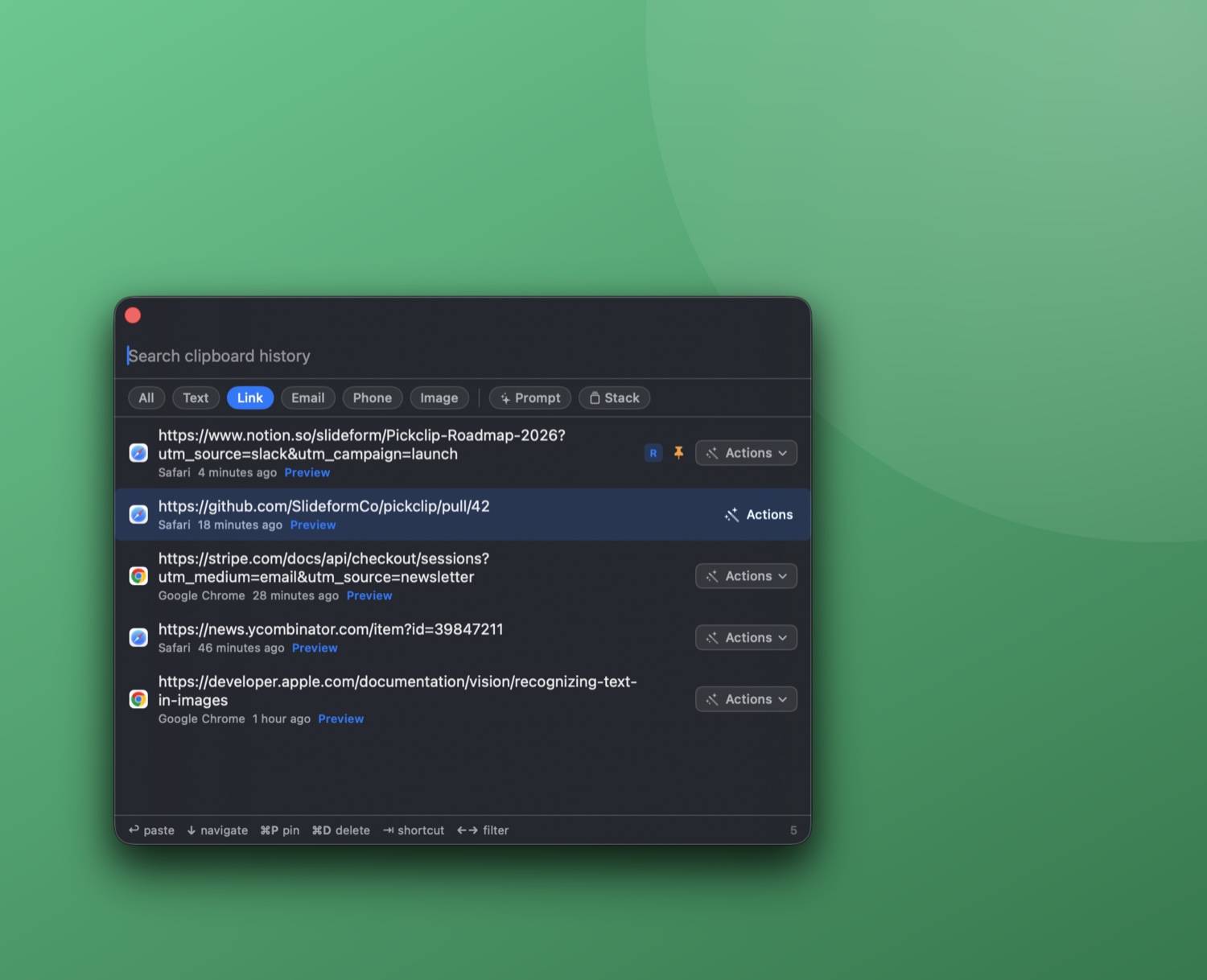
People often search for multiple clipboards on Mac — the ability to copy several things and paste each one separately. A clipboard manager is that. Instead of one slot you keep overwriting, every copy stacks up in the list. Grab a name, an email, and an address in one pass, then paste each where it goes. Nothing is lost when you copy the next thing.
The features that make a history actually usable
A long, unsorted list of copies wouldn't help much. These features make a history actually usable:
- Search — type a word and the whole history narrows to matching clips, even from days ago.
- Filter by type — one click shows just links, just images, just emails or JSON or numbers. The chips only show the types you've actually copied, so the filter bar isn't cluttered with kinds you never use.
- Pin what you reuse — keep your signature, a wallet address, or a canned reply at the top permanently.
- Auto-expire — the clips you'll never need again age out on their own, so the list stays short and relevant.
- Text, rich text, and images — your history isn't text-only; screenshots and formatted copies are in there too.
- Link previews on demand — pull a link's title and icon when you want them, and only then. Pickclip never reaches out to your links on its own.
The part most clipboard managers miss: act on a past clip
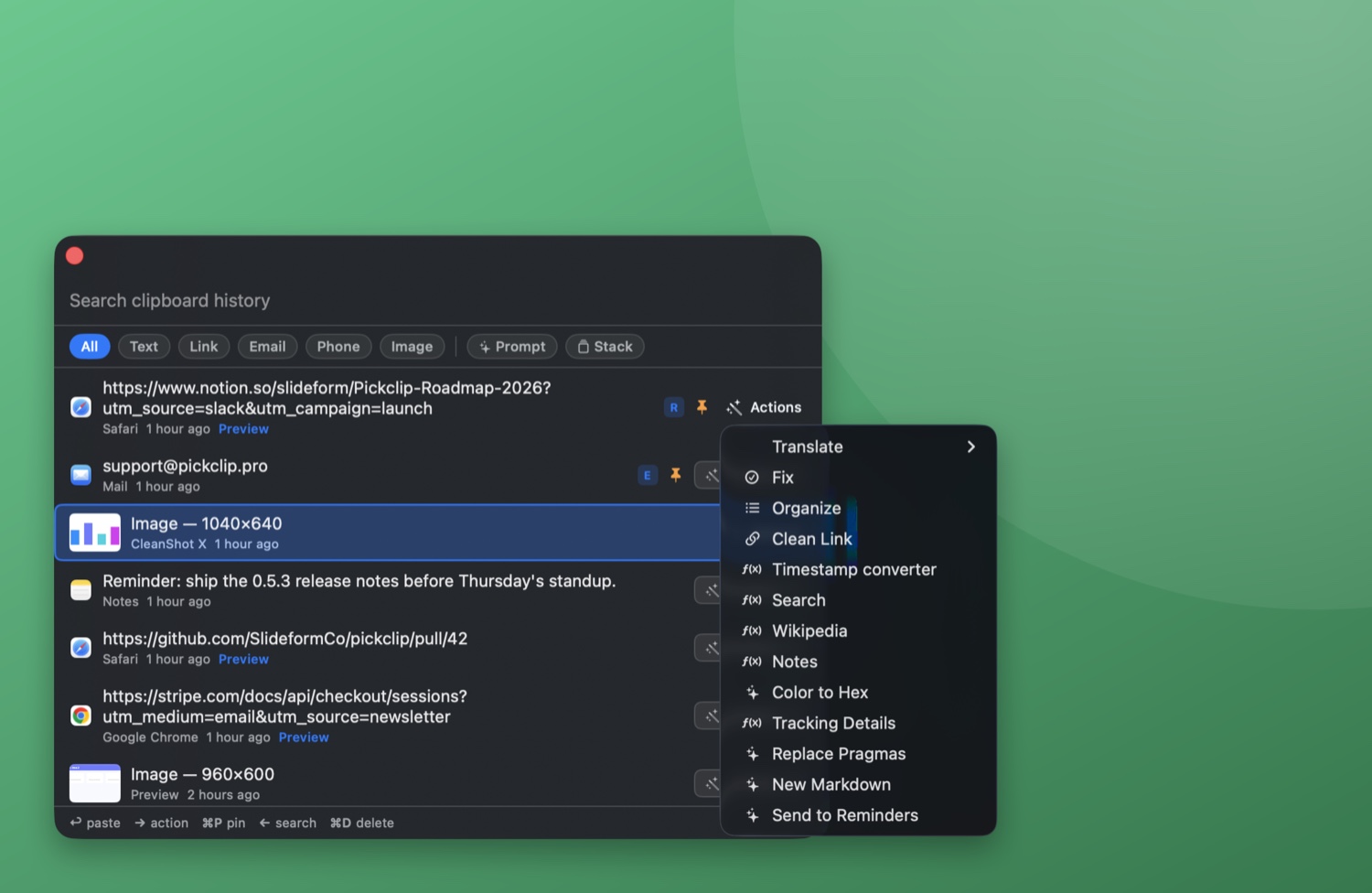
This is where a clipboard you can act on beats one that only stores. In Pickclip, every item in your history has an actions menu, so you can take something you copied an hour ago and, right from the history window:
- Translate a sentence into another language,
- Clean a link of its tracking parameters,
- Fix the grammar, summarize it, or run any of your own custom actions —
and the result pastes straight back into the app you're in. Your history stops being a pile of old copies and becomes a set of inputs you can actually work with.
Is keeping a clipboard history safe?
Your clipboard history is a record of things you copied — some of it sensitive — so where it's stored matters. Some clipboard managers sync your history to the cloud; Pickclip keeps it only on your Mac. No account, no telemetry, and the AI actions you run on your clips happen on-device. Link previews are fetched only when you ask for them. Your clipboard is none of the cloud's business.
A clipboard you can come back to — and act on.
Pickclip keeps a private, searchable history of everything you copy — text, rich text, and images — and lets you run an action on any past clip. Press ⌘⇧V and it's all there. Local, on-device, no subscription.
↓ Download for Mac Free 14-day trial · macOS 26+ · Apple SiliconFrequently asked questions
How do I view clipboard history on Mac?
macOS doesn't keep a full clipboard history on its own. Install a clipboard manager like Pickclip and press its shortcut (⌘⇧V) to open a searchable list of everything you've copied, then pick any item to paste it.
Where is the clipboard history on Mac?
There isn't a persistent one built in. macOS 26 added a short, temporary clipboard history in Spotlight, but it clears after a few hours. A clipboard manager keeps a lasting, searchable history you open with a hotkey.
How long does Mac keep clipboard history?
The system clipboard keeps only the most recent item and replaces it as soon as you copy again. macOS 26's Spotlight history keeps recent items for a few hours. With a clipboard manager you choose how long history is kept; older clips age out automatically.
Can I have multiple clipboards on Mac?
Effectively yes, with a clipboard manager. Every copy is saved to a list, so you can copy several things and paste each one separately — and pin the ones you reuse.
How do I clear my clipboard history?
In a clipboard manager you can delete individual clips or clear the whole history from its window or settings. Items you haven't pinned also expire on their own over time.
New here? Start with the basics — what a clipboard manager is and whether you need one — then see how to act on what you copy.