You've got the text right in front of you — it's just trapped inside an image. A screenshot of an error message, a slide from a deck, a Wi-Fi password on a sticker, a scanned page. Retyping it is the slow way out. OCR pulls the words straight out, and on a Mac you can do it in two keystrokes without sending a single pixel to the cloud.
- OCR (optical character recognition) turns the text inside an image into editable, selectable text.
- Copy any image to the clipboard and choose Extract Text — the words land on your clipboard, ready to paste.
- With the screenshot hotkey, it's a two-keystroke screenshot-to-text flow.
- It runs on-device with Apple's Vision framework — offline, nothing uploaded.
What is OCR, and why copy-paste doesn't just work
When text lives inside an image — a PNG, a screenshot, a photo — your Mac sees a grid of pixels, not letters. You can't select it, search it, or paste it. OCR (optical character recognition) is the technology that looks at those pixels and works out the words, handing you back real, editable text.
macOS has some of this built in (Live Text lets you select text in photos in certain apps), but it's scattered across apps and doesn't cover the most common case: you just took a screenshot and you want its text on your clipboard, now.
The fast way: copy an image, extract its text
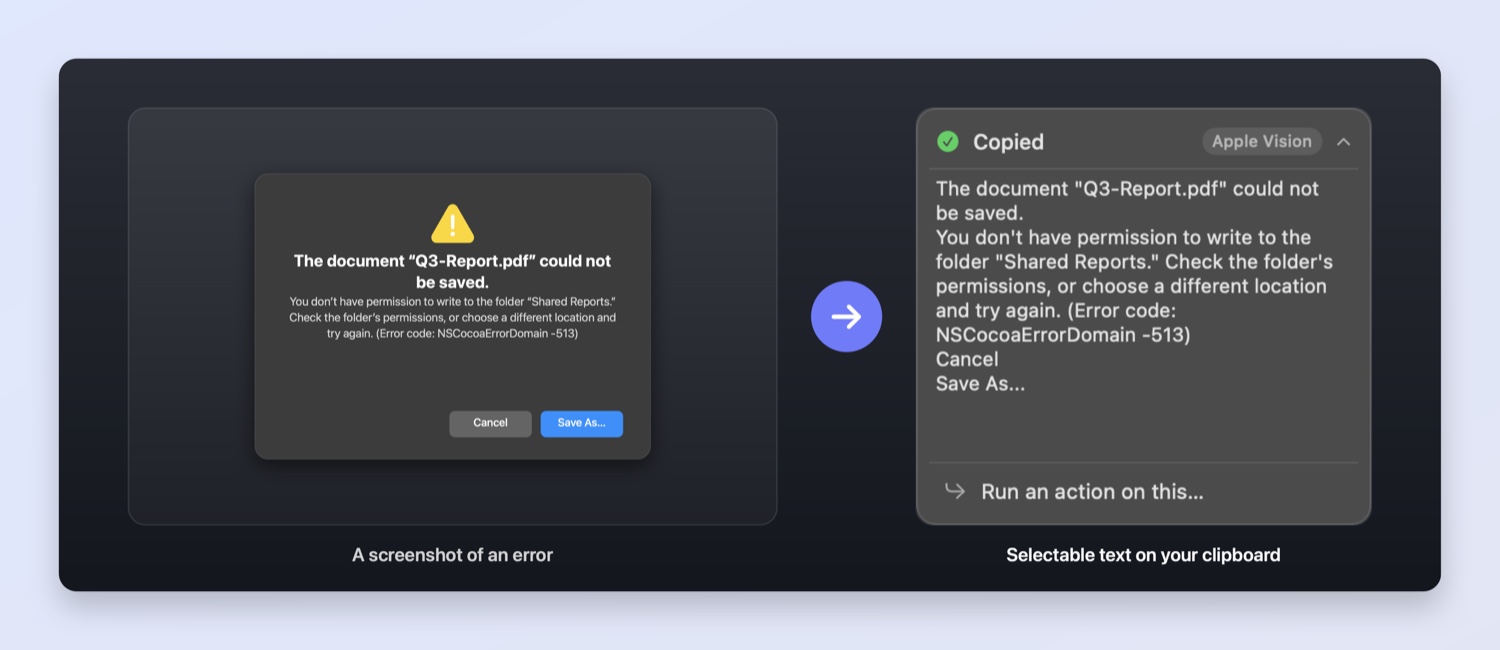
Here's the flow with Pickclip. Any time raw image data lands on your clipboard — you took a screenshot, or copied an image from a web page or a chat — a small image popup appears with a thumbnail and two choices:
- Extract Text — runs OCR and puts the recognized text on your clipboard.
- Save to Folder… — files the image somewhere (more on that below).
Pick Extract Text and you're done — paste the words wherever you need them. No app to open, no file to upload, no waiting on a server.
Screenshot to text in two keystrokes
Combine OCR with the built-in screenshot capture and you get the fastest path from screen to clipboard:
- Press the capture hotkey (⌘⇧7 by default) — the same crosshair you know from ⌘⇧4 appears. Press Space to grab a whole window instead of a region.
- Drag over the area. The capture lands in Pickclip's image popup.
- Choose Extract Text. The words are now copied.
Two gestures — capture, extract — and the text from anything on your screen is yours. Grab the text out of a YouTube slide, a PDF you can't select, a dialog box, a paywalled chart label, a video frame.
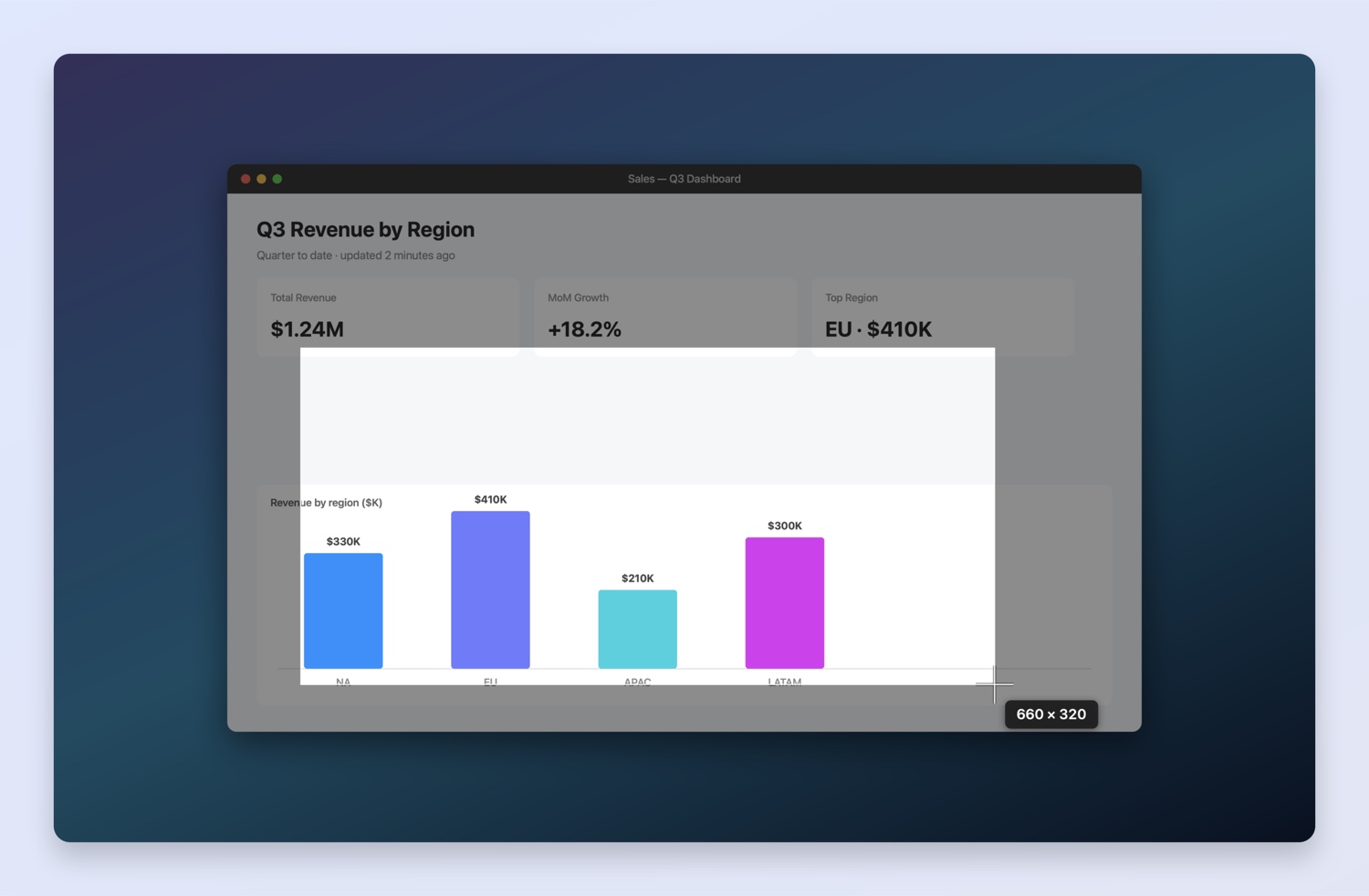
The screenshot hotkey is configurable in Settings → Shortcuts (⌘⇧7, ⌘⇧2, ⌘⇧9, and a few others, or off). Screen capture itself needs the macOS Screen Recording permission the first time — macOS prompts you, and the grant takes effect after you relaunch the app.
Real things people pull out of images
- Error messages — copy the exact wording into a search or a bug report instead of squinting and retyping.
- Wi-Fi passwords & codes — off a router sticker photo or a setup screen.
- Slides & lecture screenshots — turn a deck into notes you can edit.
- Scanned documents & receipts — get the numbers out without typing.
- Anything you can't select — locked PDFs, video frames, image-only emails.
It's also a place to keep images
Not every image needs OCR — sometimes you just want to file it. The same
popup offers Save to Folder…, where you can type where it should go
in plain words — "the downloads folder," "desktop,"
~/Code — and Pickclip finds the folder and saves the PNG there. After
a save, it remembers that destination and offers it as a one-click "Save to
<folder>" next time. Copied images also flow into your
clipboard history, so you can find that
screenshot again later.
Why on-device OCR is the one to want
Plenty of "image to text" tools work by uploading your picture to a website. That's fine for a meme — not for a screenshot of an invoice, a private message, or a password. Pickclip's OCR uses Apple's Vision framework and runs entirely on your Mac: no server, no account, no internet connection required. The image and the text it contains never leave your machine, and it works on a plane with the Wi-Fi off.
Turn any screenshot into text — on your Mac.
Pickclip's on-device OCR pulls every word out of an image the moment you copy it, and a single hotkey gives you a screenshot-to-text flow in two keystrokes. Private, offline, no upload.
↓ Download for Mac Free 14-day trial · macOS 26+ · Apple SiliconFrequently asked questions
How do I extract text from an image on Mac?
Use OCR. With Pickclip, copy the image to the clipboard and choose Extract Text — it recognizes the words on-device with Apple's Vision framework and puts them on your clipboard, ready to paste anywhere.
How do I copy text from a screenshot on Mac?
Capture a region into Pickclip with the screenshot hotkey (⌘⇧7 by default), then choose Extract Text in the popup. The recognized text is copied for you — a two-keystroke screenshot-to-text flow that works offline.
Is the OCR accurate?
It uses the same Vision text recognition that powers Live Text in macOS, which is very accurate on clear, printed text. Clean, high-contrast screenshots give the best results; very small, blurry, or stylized text is harder for any OCR.
Does extracting text from an image upload it anywhere?
Not with Pickclip. OCR runs entirely on your Mac — no server, no account, no internet required — so the image and its text never leave your machine.
Every screenshot you copy also lands in your clipboard history. Here's how to browse, search, and reuse everything you've copied.